Multi-Stakeholder Assessments
An assessment that reflects only a single perspective always shows an incomplete picture. Multi-stakeholder assessments solve this problem: you create an assessment, generate a share link, and invite multiple participants — for example, the IT director, CISO, and CTO of a client. Each participant fills in their own perspective; the results are consolidated and show both the consensus and the divergences.
Prerequisites
- Enterprise plan active
- Assessment already created (standalone or in a project)
- Email addresses of participants — participants do not need an Alev-B account
Step by Step
Create assessment and generate share link
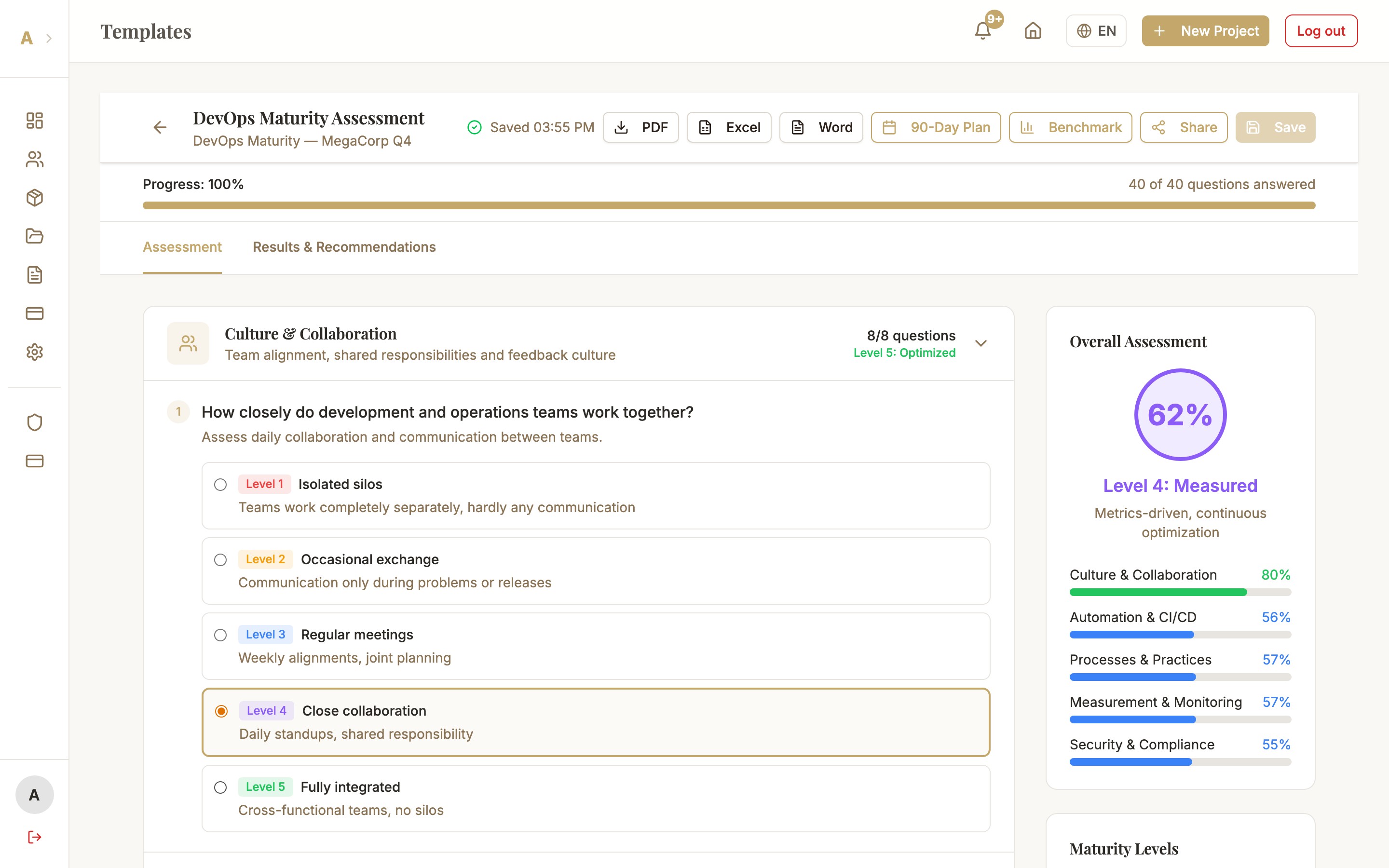
Open an existing assessment in the workspace. Click the "Share" icon (people icon with plus) in the top right. In the "Share Assessment" dialog you can generate a share link. The link is valid for 30 days and can be deactivated at any time.
Optional: give the share link a label (e.g. "IT Director Perspective") so you can tell in the results view who gave which answers.
Send link to participants
Copy the share link and send it to your participants — via email, Slack, or any other channel of your choice. Participants do not need an Alev-B account. They open the link in a browser and see a simplified view of the assessment tailored to them.
Participants fill in their perspective
Each participant sees the same questions but fills them in independently — without seeing other participants' answers. The participant view is intentionally minimalist: no sidebar, no score display, no distractions. Focus on the questions.
You can see in your workspace which participants have already completed their part. Once a participant is done, a green checkmark appears next to the share link.
Consolidate results
Once all relevant perspectives have been received, click "Consolidate Results" in the workspace. The platform creates a consolidated view showing:
- Consolidated score — Average of all participant scores
- Opinion divergences — Questions with high variance are highlighted — these are often the most interesting insights
- Individual perspectives — Side-by-side comparison of all participant answers
The consolidated report can be exported as a PDF and includes all perspectives in a structured document — ideal as a basis for discussion with the client.
Common Issues
The "Share" button does not appear in the workspace
Multi-stakeholder is an Enterprise feature. Check under Account → Subscription whether your plan is Enterprise. If you are on Professional, clicking the locked icon shows how to upgrade.
Participant cannot open the share link
Check whether the share link is still active (30-day validity). Under Workspace → Share you see all active links with expiry dates. If the link has expired, generate a new one. Make sure the link was copied in full — some email clients truncate long URLs.
"Consolidate" produces strange average values
This happens when a participant has only partially completed the assessment. Unanswered questions are omitted during consolidation (not counted as 0). In the consolidation dialog you can see which participant left which questions unanswered and ask them to fill in the missing answers.
Next Steps
- For Participants → Join an Assessment — step-by-step guide for invited participants
- Exports & Reports — create consolidated PDF reports
- Benchmarks — compare consolidated score with industry data