Fill Out an Assessment
Completing an assessment typically takes 10 to 30 minutes — depending on the template depth and your preparation. The platform guides you through all questions in a structured way, shows your progress in real time, and saves every change automatically. At the end you receive a total score, category scores, and AI-based action recommendations.
Question Types
Depending on the template, you will encounter three different question formats:
- Scale (1–5) — The most common type. Rate a statement on a scale of 1 ("not present") to 5 ("fully established"). Scale questions feed directly into the category score.
- Free text — Additional comments, context, or observations. Free-text answers do not feed into the numeric score, but the AI uses them for more nuanced recommendations.
- Selection (Multiple Choice) — Predefined options that best describe the current state. Certain selection options have predefined point values that feed into the score.
Filling Out the Assessment Step by Step
Open the workspace
Click on the template in the template library or your project details page. The workspace opens — on the left you see the category navigation, on the right the current question.
Answer the questions
Answer each question to the best of your knowledge. You do not need to answer all questions at once — the assessment remembers your progress. Use free-text fields to add important context that will later feed into the AI recommendations.
Track progress
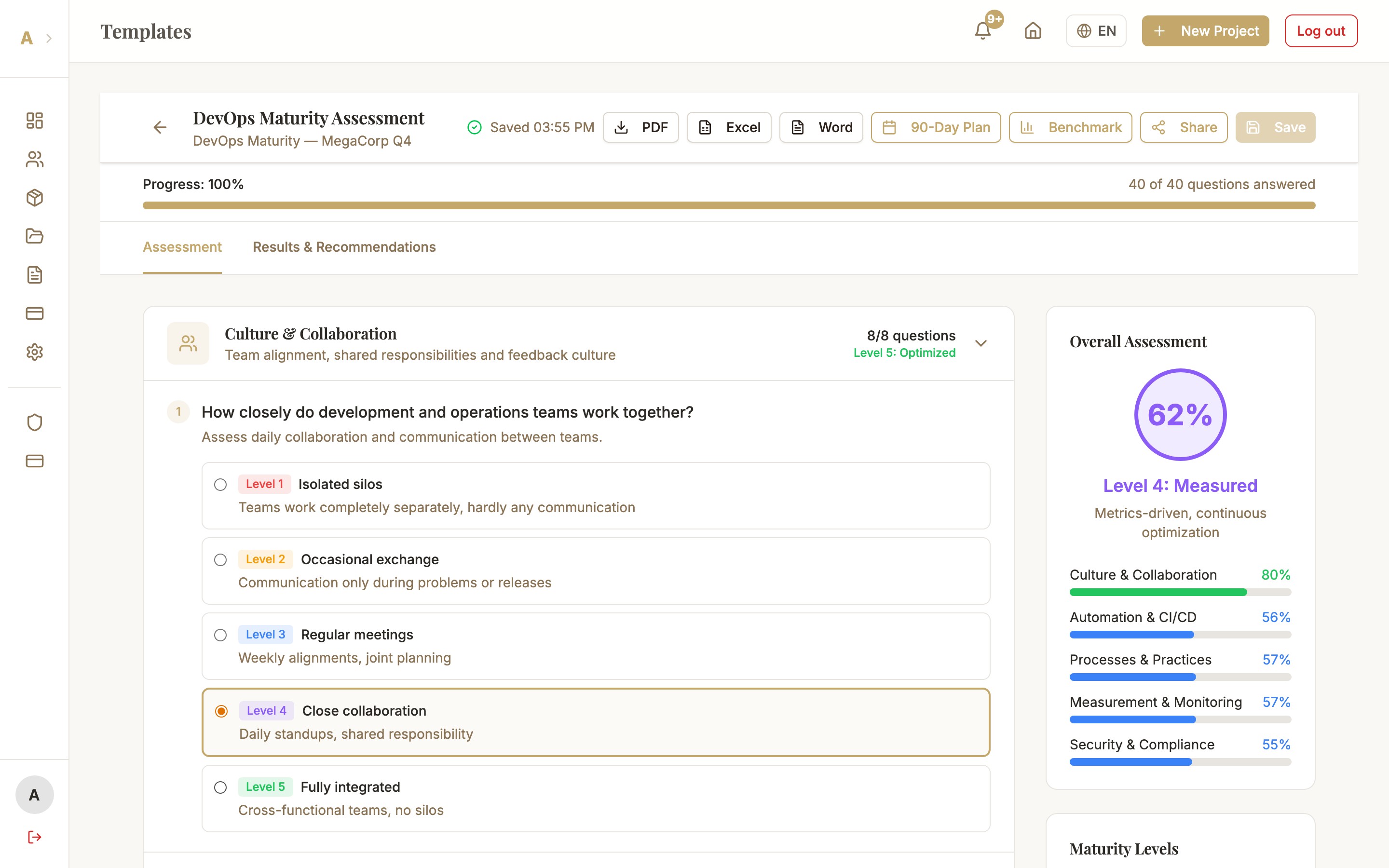
At the top of the workspace you see a progress bar showing how many questions you have already answered. In the left category navigation you see the completion percentage per category.
Generate AI recommendations
Once the assessment is at least 50% complete, the "Generate AI Recommendations" button becomes active. You do not need to fully complete the assessment to get initial results — from 50% progress onward a first look is already worthwhile.
Auto-Save
The workspace saves your progress automatically — no manual saving needed. Saving happens with a 2-second debounce: 2 seconds after your last input, it saves automatically. In the top right corner of the workspace you see a small status indicator ("Saved" / "Saving...").
Score Calculation
Each template category (e.g. "CI/CD", "Testing", "Monitoring") gets its own score. The total score is the weighted average of all categories:
Common Issues
Score shows 0% even though questions were answered
Check whether you have only answered free-text questions. Free-text answers do not feed into the numeric score. For a score > 0%, at least one scale or selection question must be answered.
Auto-save does not seem to be active
Check your internet connection. The auto-save indicator in the top right shows "Connection error" when there is no connection. All inputs are cached locally and transmitted on the next successful save attempt. Reload the page if the indicator permanently shows "Saving...".
"Generate AI Recommendations" button is greyed out
The button only becomes active when the assessment is at least 50% complete. Check the progress bar at the top. If you are below 50%, answer more questions — especially in categories that are still empty.
Next Steps
- AI Recommendations — understand and export personalized action recommendations
- Benchmarks — compare results with real industry data
- Multi-Stakeholder Assessments — incorporate multiple perspectives