Your First Assessment
This guide walks you through your first assessment run — from template selection to a finished PDF. The entire process takes about 10 minutes. You do not need a client or project to get started: assessments can also be run standalone.
Step by Step
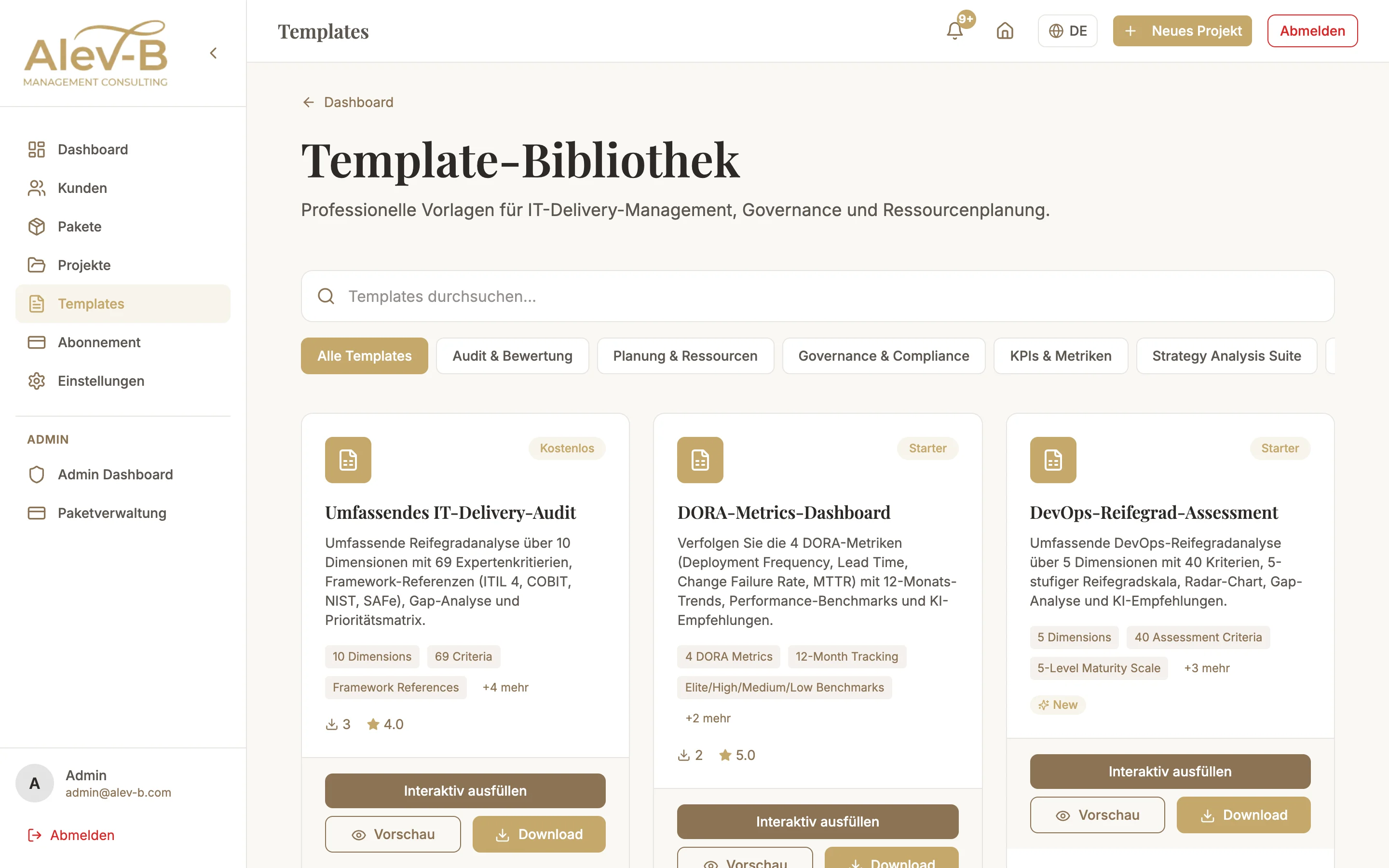
Select a template from the library
Click "Templates" in the sidebar. You see the full template library, divided into categories such as "IT Delivery", "AI Readiness", "Digital Maturity", and more. Select a template that fits your current situation and click "Start Template".
A good starting point: the "IT Delivery Health Check" template is compact, covers the most important areas, and delivers meaningful results.
Answer the questions
The assessment consists of multiple thematic sections with questions. Each question has a scale (typically 1–5) or a selection from predefined answers. Answer all questions as honestly and precisely as possible — the quality of the AI recommendations depends directly on this.
The score is calculated automatically as you answer questions. You see the current total score and per-section scores in real time.
Generate AI recommendations
Once all required questions are answered, the "Generate AI Recommendations" button appears in the top right. Click it. The AI analyzes your answers, identifies the most critical action areas, and formulates specific, prioritized measures.
Generation typically takes 10–30 seconds. The result appears directly below the assessment as a structured recommendations block.
Export as PDF
Click "Export PDF" (top right or in the actions menu). The PDF export dialog opens, where you can configure the following options:
- Report title (default: template name + date)
- Logo (your consulting logo for white-label)
- Content: score only, score + recommendations, or full report
Then click "Download". The PDF is generated server-side and automatically downloaded after a few seconds.
Common Issues
Score shows 0% even though questions were answered
Some templates have required questions that must all be answered before the score is calculated. Scroll through all sections and check whether there are still unanswered questions (marked in red).
"Generate AI Recommendations" button does not appear
Make sure all required questions are answered. Also, the AI feature is not available on the Free plan — an upgrade to Professional or Enterprise is required. Check your current plan under Settings → Subscription.
PDF download does not start
Check whether your browser is blocking pop-ups or automatic downloads. Allow downloads from alev-b.com. If the issue persists, try a different browser.
Next Steps
You have successfully completed your first assessment. We recommend the following next steps:
- Create clients — structure your results per engagement
- Create projects — bundle multiple assessments into one consulting engagement
- Explore templates — discover the full range of available assessment templates