Dashboard Overview
The Dashboard is your central workspace in Alev-B. From here you launch new assessments, manage your clients and projects, access templates, and configure your account. This overview explains the key areas and helps you navigate quickly.
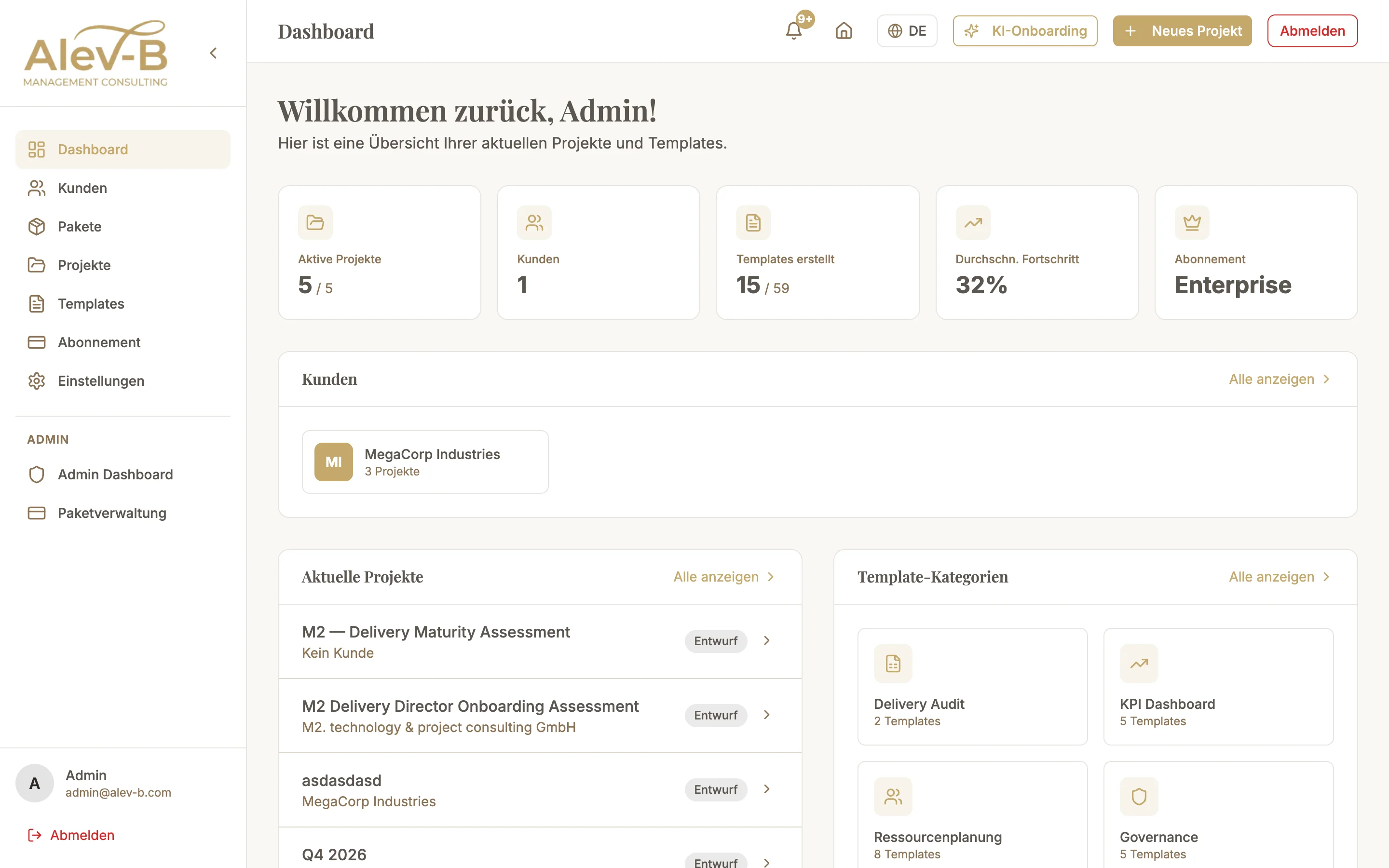
Navigation & Sidebar
The left sidebar contains the main navigation of the platform. Key sections at a glance:
- Dashboard — Home screen with activity feed, recently opened projects, and quick actions.
- Projects — All consulting engagements at a glance. Create and manage projects here.
- Templates — The assessment library with all available templates, sorted by category.
- Clients — Manage your client base, maintain contact data, and configure industry assignments.
- Settings — Profile, password, Google linking, logo, language, and subscription.
Quick Actions
At the top of the dashboard you will find quick-action buttons for the most common tasks:
- New Project — Starts the project wizard directly. Use this when you want to create a new consulting engagement.
- Start Template — Opens the template library. From there, choose an assessment and start it either standalone or within a project.
- New Client — Direct entry into client creation without navigating through the sidebar.
Activity Feed
The activity feed in the center of the dashboard shows your recent actions: completed assessments, exported PDFs, created projects, and generated AI recommendations. This lets you keep track without actively searching.
Free vs. Professional vs. Enterprise
Depending on your plan, the dashboard shows different features. A quick overview:
- Free: Limited template selection, no AI features, no white-label export.
- Professional: All templates, AI recommendations, benchmark comparisons, PDF export with logo.
- Enterprise: Additionally: team management, SSO, dedicated support, and extended analytics.
Common Questions
Some sidebar items are greyed out
These features are not enabled for your current plan. Click the greyed-out item to see which upgrade is required.
The dashboard loads, but the activity feed stays empty
With a new account, the feed is empty until you have taken first actions. Start a template or create a client — the feed populates automatically.
Next Steps
Once you are familiar with the dashboard, we recommend the guide "Your First Assessment" next — walk through your first result in 10 minutes.