Create Account
Alev-B is a consulting platform for IT consultants and delivery managers. It enables you to run structured assessments with clients, compare results against industry benchmarks, and generate AI-powered recommendations — all within a unified, professional workflow. This guide walks you through account creation and initial setup.
Prerequisites
- A valid email address
- A modern browser (Chrome, Firefox, Safari, Edge)
- For Google OAuth: an active Google account
Step by Step
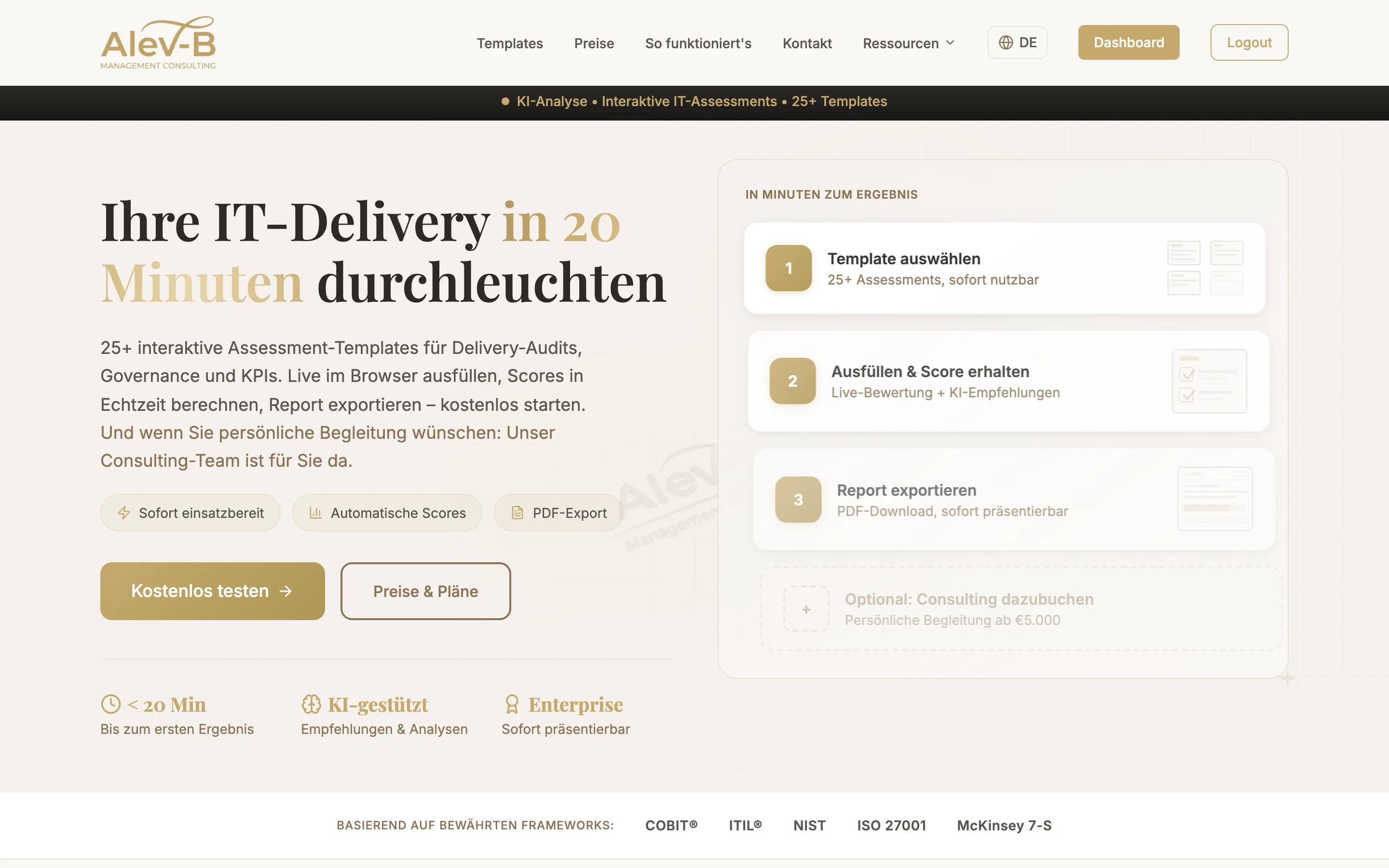
Open the website
Navigate to alev-b.com in your browser. On the homepage, click the "Sign Up" button in the top right corner to reach the registration page.
Enter your credentials
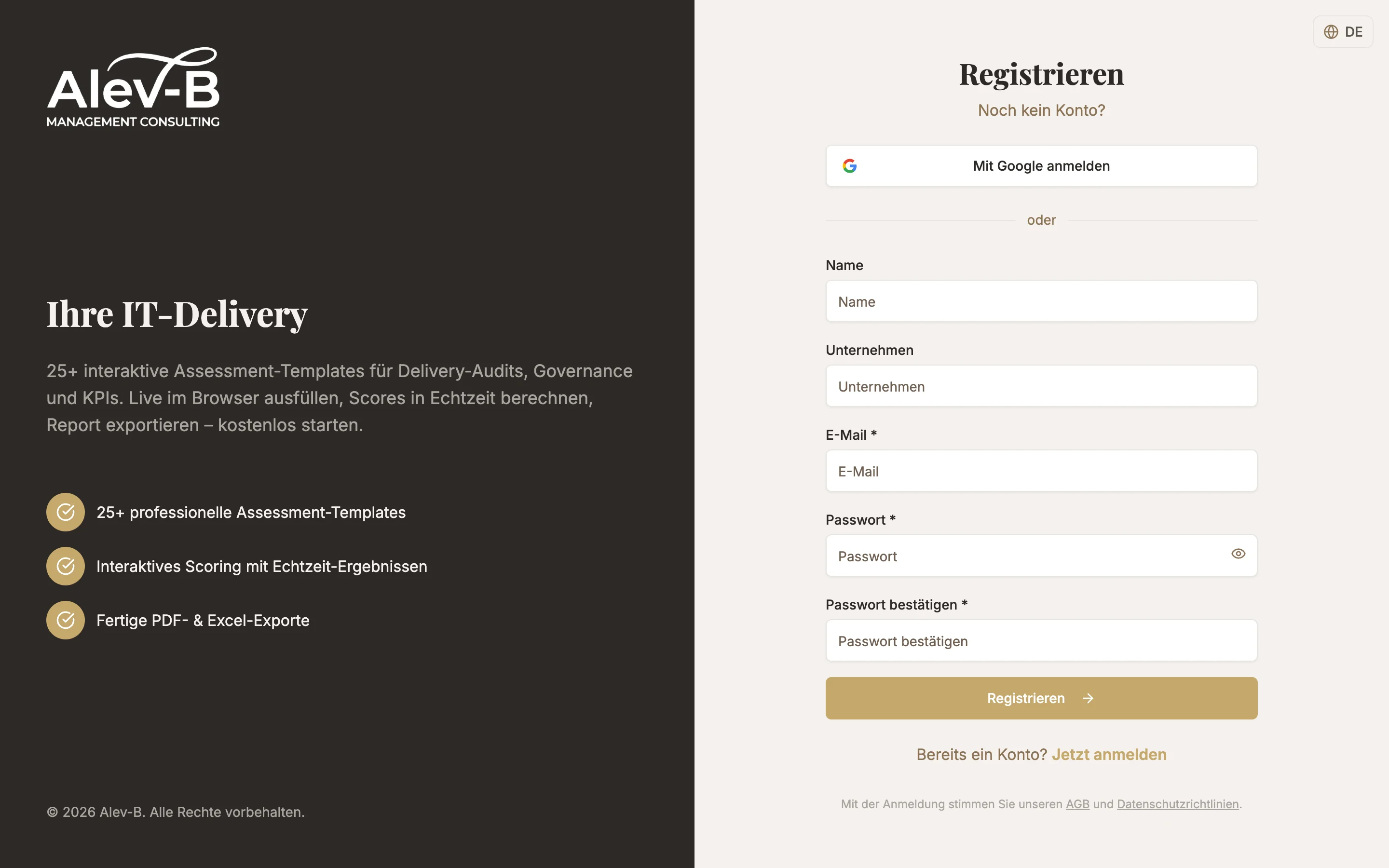
You have two options for registration:
- Email + Password: Enter your email address and a strong password (at least 8 characters).
- Google OAuth: Click "Continue with Google" and select your Google account. Your account will be created and linked automatically.
Confirm your email address
After registering via email/password, you will receive a confirmation email. Open it and click the confirmation link. The link is valid for 24 hours. Login is only possible after confirmation.
Complete the onboarding wizard
On your first login, the onboarding wizard starts automatically. It guides you through 6 short steps covering the most important settings:
- Your name and role
- Your consulting firm name and industry
- Preferred platform language (DE/EN)
- Optional logo upload for white-label PDFs
- Brief overview of key features
- Done — you land in the dashboard
You can update all settings from the onboarding wizard at any time under Settings.
Common Issues
Login fails even though the password is correct
Make sure your email address has been confirmed. Also check your spam folder for the confirmation email. With Google OAuth: ensure you are selecting the correct Google account.
Confirmation email does not arrive
Wait up to 5 minutes and check your spam folder. If the email still does not arrive, use "Resend email" on the login page to request a new one. Make sure the entered address is spelled correctly.
"Email address already taken" — error message during sign-up
An account with this email address already exists. Try logging in instead, or use "Forgot password" on the login page. If you previously registered with Google, use the Google login option.
Next Steps
After creating your account, we recommend reading the Dashboard Overview next to familiarize yourself with the platform's core areas.