Project Report
The Project Report is the most comprehensive export on the platform: a multi-page overall report that consolidates all templates in a project into a single professional document — including AI-generated narratives, industry comparison, and a Transformation Roadmap.
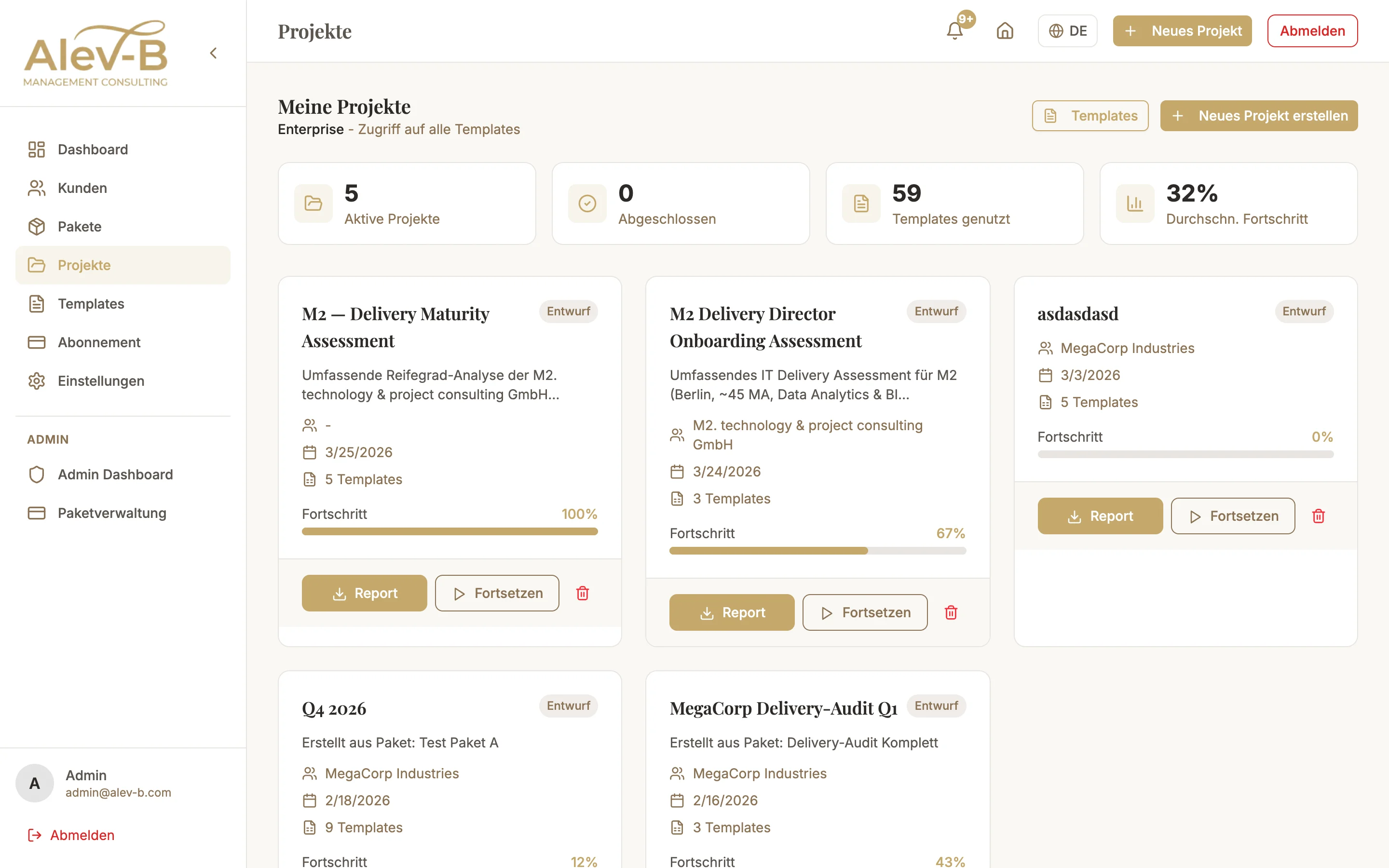
What the Project Report Contains
- Cover page — Project name, client, date, consultant logo
- Table of contents — Automatically generated with page numbers
- Executive Summary — Overall score, template count, key findings on one page
- AI Narratives — companyIntro (company context), scoreCommentary (score interpretation), industryComparison (industry comparison with real benchmark data)
- Template detail analysis — Per template: scores, category breakdown, AI recommendations
- Transformation Roadmap — Prioritized measures across all templates
- About page — Consultant info and methodology description
Create Project Report — Step by Step
Select the project
In the sidebar go to "Projects" and select the desired project. On the project detail page you see all included templates and their completion status.
Click the Report button
On the project detail page click "Project Report" (or "Generate Report"). A dialog opens where you can optionally adjust the logo and title.
AI generates narratives automatically
During report export the platform automatically generates all AI narratives based on the available assessment data. This includes the company context, score commentary, and — when a client profile with industry is present — an industry comparison using real DORA/NIST/Gartner benchmark data.
Depending on the number of templates the process takes 20–60 seconds. A progress bar shows the status.
Common Issues
Report is empty or contains no data
The project report requires at least one template that is more than 50% complete. Go back to the templates in the project and fill in the questions. Only then can a meaningful report be generated.
AI narratives are missing from the report
For narrative generation at least one template must contain scores. If all templates are empty no narratives appear. Complete at least one template fully and restart the report export.
Industry comparison is missing or shows only global data
The industry comparison is only generated when the project is linked to a client with an industry and company size. Go to Clients → Edit Client and add industry and size. Then assign the client to the project and regenerate the report.
Next Steps
- Excel & Word Export — process data further in your own tools
- Benchmarks — learn about real industry data and data sources
- Client Setup — create clients with industry and size for precise reports