PDF Export
Professional reports at the click of a button — PDF export turns your assessment results into a presentation-ready document. Two modes are available: Standard Mode for structured data reports and Story Mode for AI-generated management analyses.
Two Export Modes
Choose the mode that fits your occasion:
- Standard Mode — Contains scores, category breakdown, and structured AI recommendations. Ideal for internal reports and interim updates.
- Story Mode — AI-generated management analysis in 5 paragraphs (companyIntro, scoreCommentary, industryComparison, Transformation Roadmap, conclusion). Ideal for client-facing presentations.
Export PDF — Step by Step
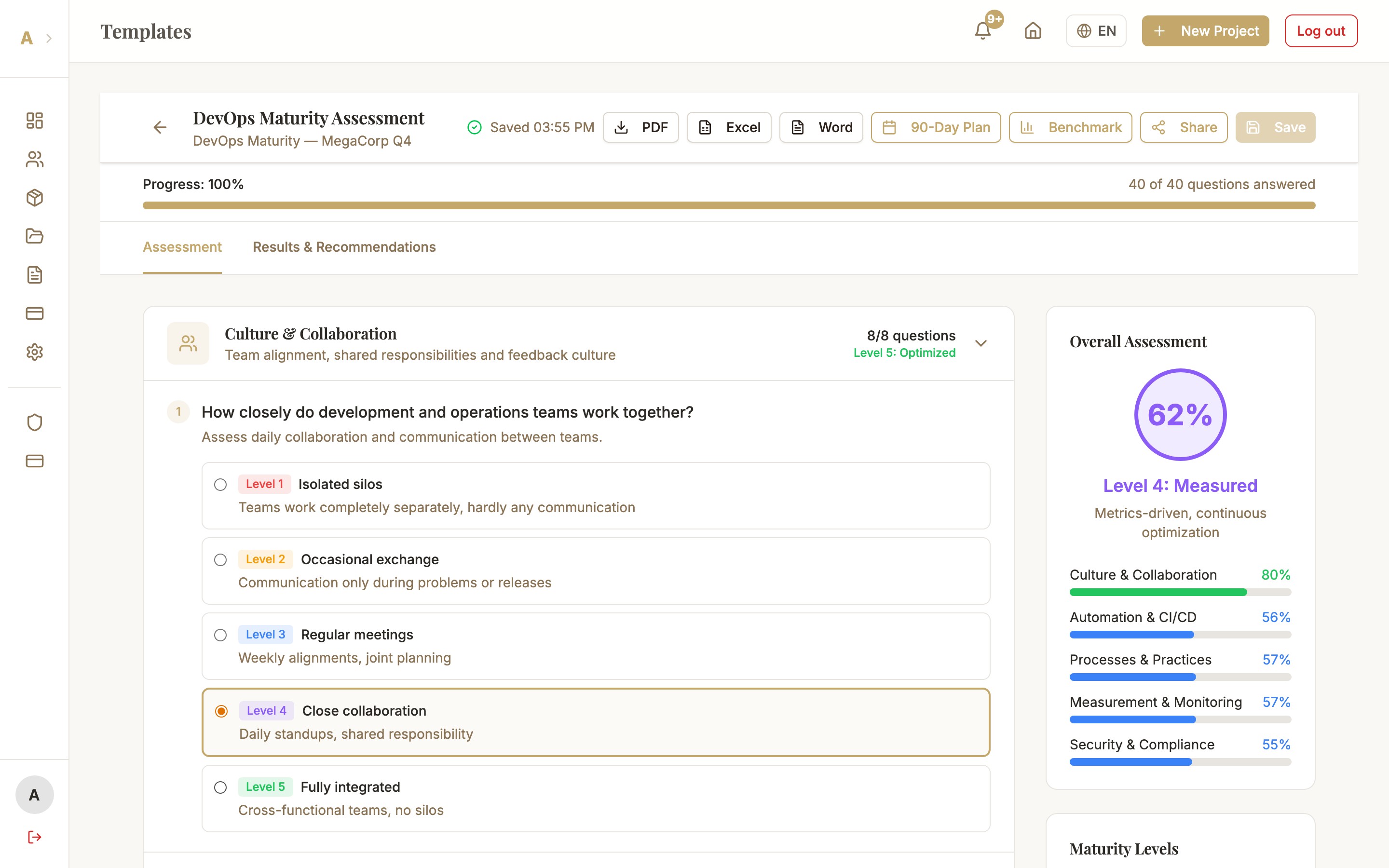
Open workspace and click Export button
Open the assessment in the workspace. Click "Export" in the top toolbar and select "PDF" from the dropdown menu.
Select mode
The PDFExportDialog opens. At the top of the dialog, choose between "Standard" and "Story". A preview description explains what each mode includes.
Customize logo and title (optional)
In the PDFExportDialog you can optionally enter a report title and upload your own logo. The logo appears on the cover page and in the header. If a logo is already set under Settings → Consultant Branding, it is pre-filled automatically.
Download
Click "Generate PDF". The server creates the document (usually takes 5–20 seconds) and starts the download automatically.
Common Issues
PDF is empty or shows no data
The assessment must be at least 50% complete before a PDF can be generated. Check the progress bar in the workspace — below the 50% threshold no report is generated.
Logo is missing from the PDF
If the logo does not appear even though it was uploaded in the dialog, check the file format: PNG and JPG are supported, SVG and WebP are not. Maximum file size is 2 MB. Re-upload the logo and restart the export.
Download does not start
Check whether your browser blocks pop-ups and automatic downloads for alev-b.com. Go to browser settings under "Downloads" and allow automatic downloads from this site. Alternatively, after successful generation a direct download link appears.
Next Steps
- Project Report — comprehensive report across all templates in a project
- Excel & Word Export — process data further in your own tools
- Settings → Consultant Branding — save your White-Label logo and colors