Excel & Word Export
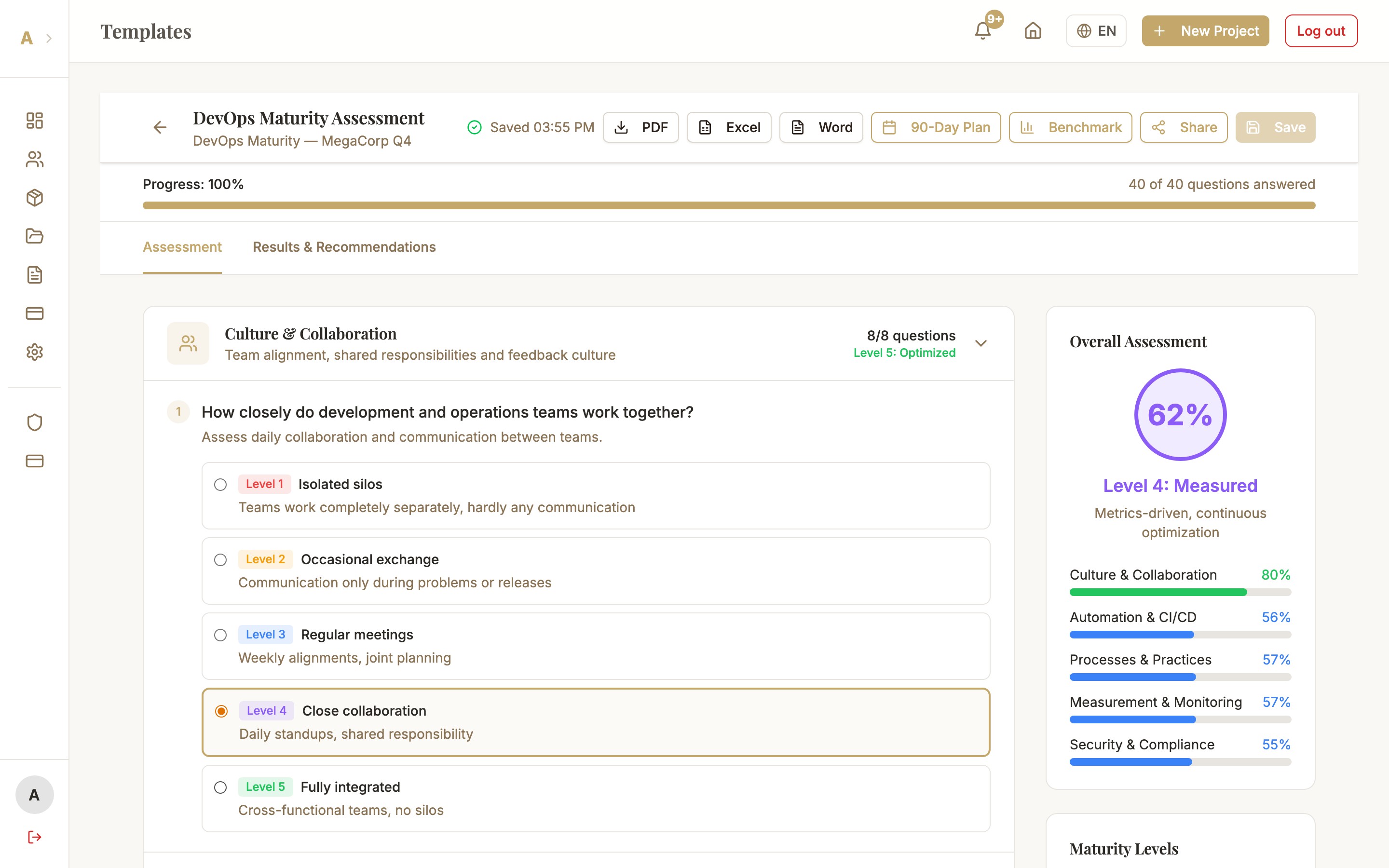
Not everything has to end up as a PDF. With Excel and Word export you can integrate your assessment data directly into your own reporting and documentation workflows.
Which Format for Which Use Case?
- Excel (.xlsx) — Ideal for data analysis and management reporting. Contains score data per category as raw data, AI recommendations as text, and benchmark comparison values as separate columns — ready for your own pivot tables and charts.
- Word (.docx) — Ideal for documentation and editable reports. Formatted report with structure that can be fully edited in Microsoft Word.
- PDF — Ideal for presentations and final deliverables. Non-editable, professionally formatted.
Export Excel or Word — Step by Step
Open the workspace
Open the assessment in the workspace. Both export options are found under the "Export" button in the top toolbar.
Select format
Click "Export" and select "Excel (.xlsx)" or "Word (.docx)" from the dropdown. The export starts immediately — there is no further configuration step. The download begins automatically after a few seconds.
What Is in the Excel Export?
The Excel document contains multiple worksheets:
- Overview — Overall score, template name, date
- Categories — Score per category as raw data — ideal for your own charts
- AI Recommendations — All generated recommendations as text per row
- Benchmark — Comparison values (if industry comparison is available)
Common Issues
Excel shows no data / all cells empty
The Excel export requires at least some answered questions in the assessment. Check the progress bar in the workspace — if the assessment is less than 20% complete no meaningful export can be generated. Also: AI recommendations must be generated first for the corresponding worksheet to be populated.
Word document does not open correctly
The exported .docx format is compatible with Microsoft Word (2016+) and LibreOffice Writer. If the document is not displayed correctly, check your Office version. With Google Docs minor formatting deviations may occur — but the .docx remains fully editable.
Download does not start
Check whether your browser blocks automatic downloads. Go to browser settings and allow downloads from alev-b.com. The browser may show a security warning for .xlsx/.docx downloads — this is normal and can be safely confirmed.
Next Steps
- PDF Export — professional reports for client presentations
- Project Report — comprehensive report across all templates in a project
- Settings → Consultant Branding — save your White-Label logo and colors