Compare Another Industry & PDF Benchmark
Sometimes a single industry comparison is not enough — especially when your client operates across multiple industries, or when you want to explore different scenarios ("What if we compare ourselves to Healthcare instead of Financial Services?"). This guide shows how to generate a new benchmark for a different industry and how benchmark data automatically flows into your PDF reports.
Part 1: Compare Another Industry
Open the benchmark modal
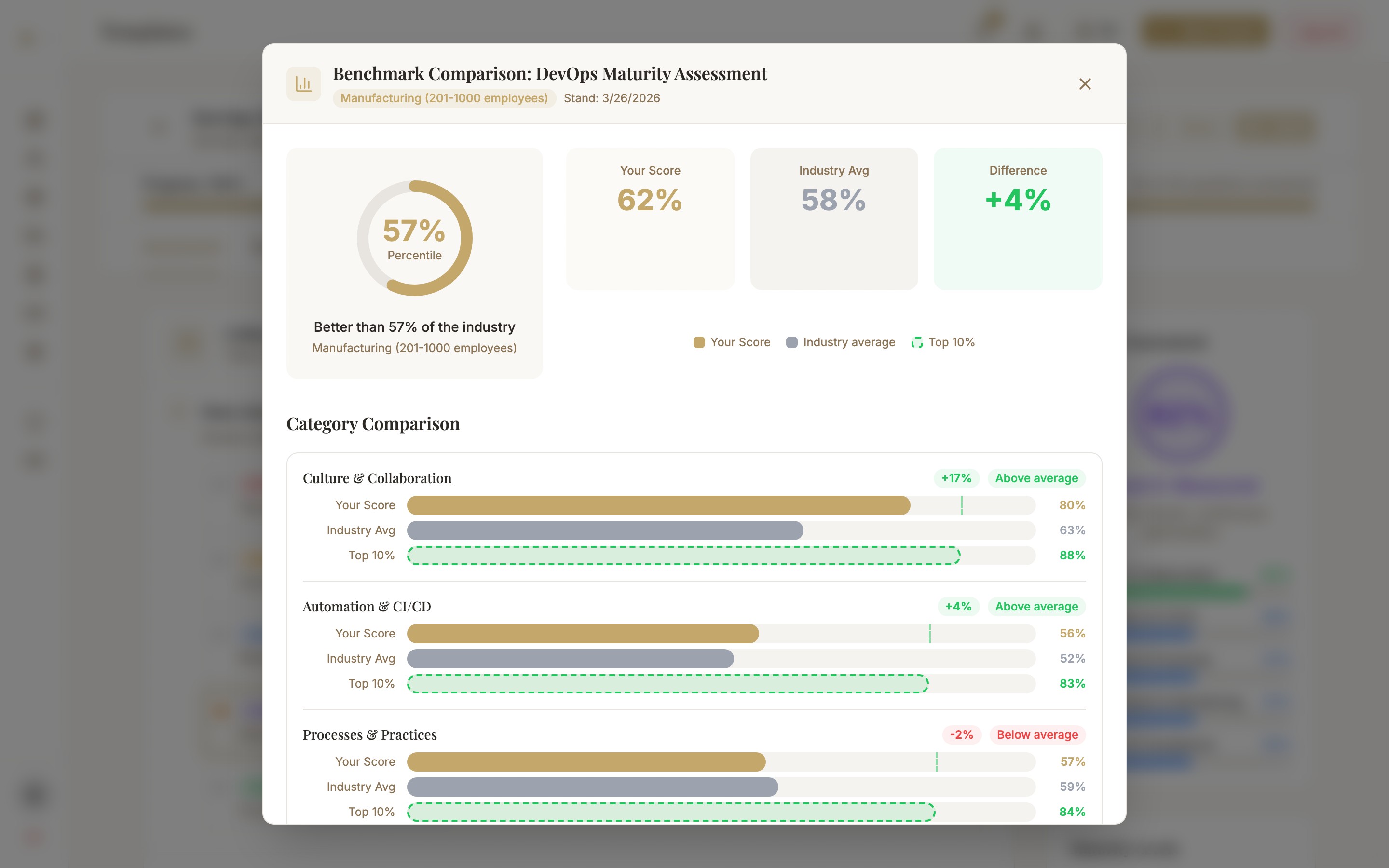
Open the assessment in the workspace and click "Benchmark" in the top toolbar. The benchmark modal with the current comparison opens.
Adjust industry and company size
In the benchmark modal you see the currently selected industry and company size at the top. Click "Adjust" (pencil icon). A dropdown opens where you can select a different industry and/or company size.
Available industries: Financial Services, Healthcare, Manufacturing, Retail, Technology, Public Sector, Education, Energy & Utilities, Telecommunications.
Regenerate
Click "Regenerate Benchmark". The platform loads the new benchmark data for the selected industry and size and generates an updated comparison. The process usually takes 5–15 seconds.
Note: adjusting in the benchmark modal does not change the client profile — it is only temporary for this comparison. To permanently change the client profile, go to Clients → Edit Client.
Part 2: Benchmark in the PDF Report
When you export a PDF report, benchmark data flows in automatically — provided a client profile with industry is present.
How the industryComparison section works
The PDF report contains a dedicated "Industry Comparison" section (industryComparison). This section is generated server-side during PDF export and contains:
- Percentile positioning — Visual representation of the score in the industry comparison (bar chart)
- Category heatmap — Color-coded overview: where is the client above/below the industry average?
- Narrative comparison — AI-generated prose with concrete action recommendations based on the benchmark data
- Source references — Automatically generated footnotes with the reports used and their years
Common Issues
Benchmark data in the PDF seems inaccurate or too generic
This usually happens when the assessment is run standalone (without a client). For industry-specific benchmarks we recommend embedding the assessment in a project and assigning a client with a maintained industry and company size to the project. Open the project details page, assign the client, and regenerate the PDF report.
The "Industry Comparison" section is missing from the PDF
Check in the PDF export dialog whether the "Industry Comparison" section is enabled. It can be toggled under "Select Content" in the dialog. If the section is enabled but still missing, check whether the assessment is at least 50% complete — below this threshold no benchmark section is generated.
"Regenerate benchmark" takes very long or fails
Benchmark generation depends on the AI API (Gemini). Under heavy load the process can take 30–60 seconds. If the request fails, an error message appears with a retry option. Please wait 30 seconds and try again. Persistent issues may indicate a temporary API outage.
Next Steps
- Real Data Sources — which studies and reports power the benchmarks
- Exports & Reports — all export options and PDF customizations
- AI Features — get the most out of AI recommendations and narratives