Understanding AI Recommendations
Alev-B uses AI (Gemini) to generate tailored recommendations from your assessment scores — not boilerplate text, but concrete guidance based on your client's actual weaknesses and industry context. Recommendations are weighted by priority and directly actionable.
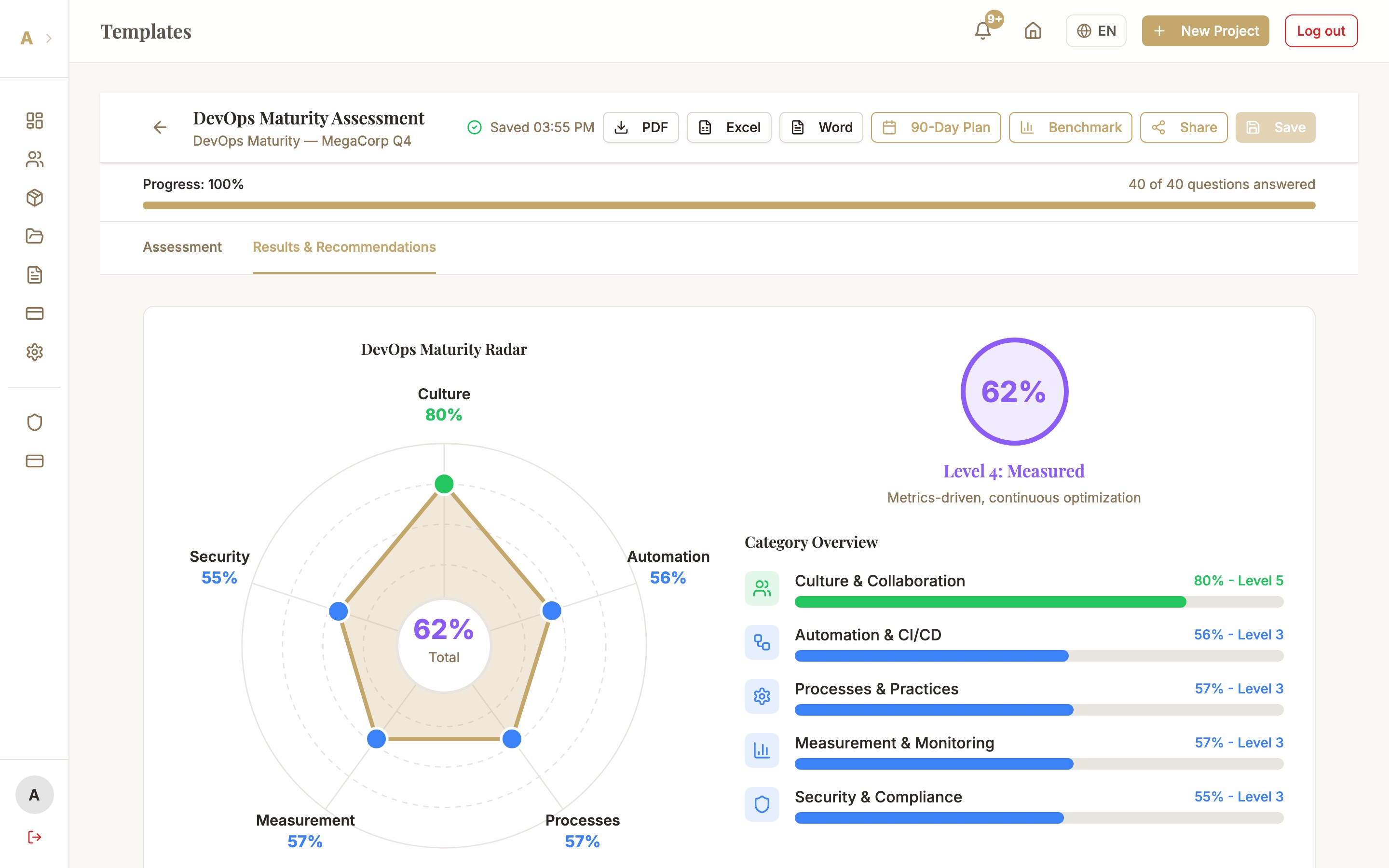
How Recommendations Are Generated
When you request AI recommendations, Gemini analyzes your assessment scores together with the client's industry context. The following information feeds into the analysis:
- All category scores and their accompanying free-text answers
- Client industry and company size (if maintained)
- Template type and its specific focus area
- Benchmark data from published industry reports
Priority Levels
Each recommendation carries a priority level indicating how urgent action is required:
- Critical (red) — Immediate action required: severe weaknesses with high risk potential
- High (orange) — High priority: important gaps that should be addressed in the medium term
- Medium (yellow) — Medium priority: improvement potential without acute risk
- Low (green) — Low priority: nice-to-have optimizations or long-term goals
Recommendations per Category
Recommendations are organized by template category. Within each category, the weakest areas are addressed first — so you can see at a glance where the most urgent need for action lies. Categories with high scores receive fewer recommendations; categories with low scores get more detailed guidance.
Generating Recommendations
Complete the assessment to at least 50%
AI recommendations are only available once the assessment is at least 50% complete. Watch the progress bar at the top of the workspace. For best results: complete as many scale questions as possible and add free-text answers where appropriate.
Click "Generate AI Recommendations"
In the top toolbar you see the "AI Recommendations" button (star icon). Click it. Depending on the scope of the assessment, generation takes 5–15 seconds. A loading indicator shows you the progress.
Read and prioritize results
The recommendations panel opens on the right side of the workspace. Read through the recommendations — start with the Critical and High priority entries. Each recommendation includes a brief rationale for why this area is critical and a concrete next step.
Tip: Use the Implementation Guide (Professional/Enterprise) for a full implementation plan for each recommendation.
Common Issues
Recommendations do not load / timeout error
Generation can take longer for large assessments. Wait up to 30 seconds. If the timeout persists: reload the page and try again. Also check that your internet connection is stable. For persistent issues: contact support@alev-b.com.
Button "AI Recommendations" is greyed out or shows "Feature not available"
AI recommendations require at least the Starter plan. Check your current plan under Account → Subscription. Free plan users see the button locked with an upgrade prompt. The assessment also needs to be at least 50% complete.
Recommendations seem too generic or not very relevant
This usually happens when too many free-text fields were left empty or no client profile (industry, size) is maintained. Add free-text answers in the relevant categories and update the client profile. Then click "AI Recommendations" again — recommendations are regenerated and are typically much more specific.
Next Steps
- Implementation Guide — from recommendation to concrete implementation plan
- AI Chat — ask questions about individual recommendations
- PDF Export — embed recommendations in a professional report