AI Chat
The AI Chat in Alev-B is not a generic chatbot — it knows the full context of your assessment. This means: it knows which scores exist in which categories, which recommendations were generated, and what industry the client operates in. You can work directly with the context without having to explain everything from scratch.
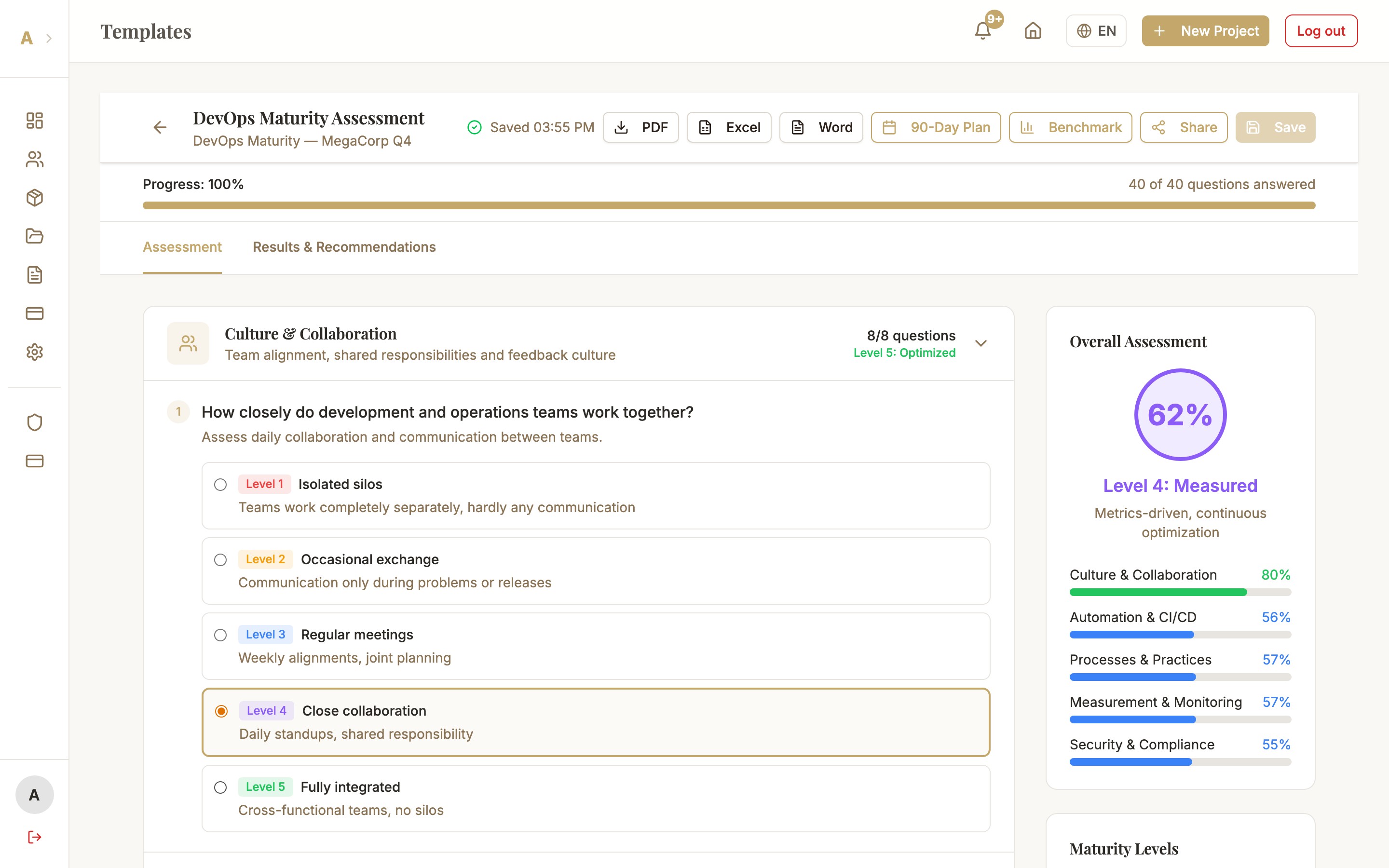
Using the AI Chat
Open chat in the workspace
Open the assessment in the workspace. In the bottom right you see the chat icon (speech bubble with star). Click it to open the chat panel. The panel appears as a sidebar, keeping the workspace still visible — you can work in the assessment and chat simultaneously.
Enter a question or choose a suggested prompt
Type your question into the input field or choose one of the suggested prompts that appear automatically. Typical starter questions:
- "What are the biggest risks in this assessment?"
- "How can I improve the score in category X?"
- "What quick wins are there for this client?"
- "Explain the recommendation on [topic] in simple terms"
- "How does this score compare to the industry average?"
Read the answer and continue working
The AI responds within seconds. The answer takes into account your scores, the identified weaknesses, and the industry context. You can continue the conversation — the chat remembers the conversation history within the session.
Important: the chat history is not permanently saved. When you reload the page or close the assessment, a new chat session begins.
Common Issues
Chat responds with very generic or irrelevant answers
This can happen when the assessment contains very little data (under 30% complete). In this case the AI has too little context for specific answers. Complete more questions — especially scale questions and free-text fields — and start a new chat session. With more data, the chat becomes significantly more precise.
Chat icon is not visible
The chat icon only appears when the assessment is saved and open. Make sure you are in the workspace of a specific assessment (not on the template overview). If the icon is still missing: check your plan — the AI chat is available from the Starter plan onwards.
Next Steps
- Implementation Guide — generate a structured implementation plan for a recommendation
- AI Recommendations — view the complete recommendations list
- Cross-Template Synthesis (Enterprise) — cross-cutting analysis across multiple assessments