Settings
In the account settings you manage your profile, login credentials, branding options for white-label PDFs, and your notification preferences. Everything in one place, accessible via Settings in the left sidebar.
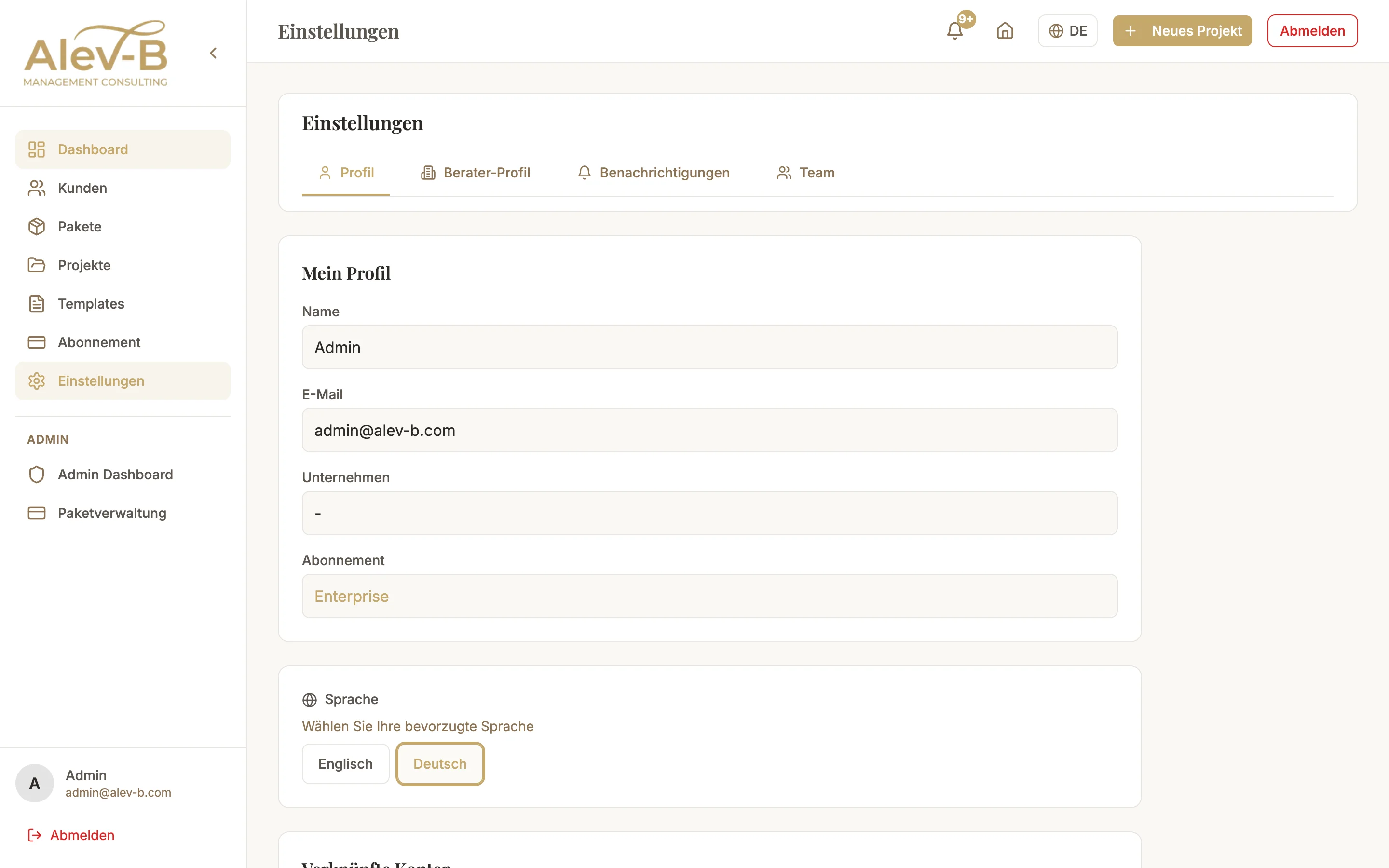
Profile Settings
Under Settings → Profile you can change the following details:
- Name — Your display name in the app and in email notifications
- Email address — Changes require a confirmation email to the new address
- Password — Set a new password (current password required for confirmation)
Google Integration
Under Settings → Security you can link your account with a Google account. After linking you can log in either with email/password or with "Sign in with Google" — both methods work for the same account.
To disconnect the link: Settings → Security → Google → Disconnect. Before disconnecting, make sure you have set a password, otherwise you will no longer be able to log in.
Consultant Branding (White-Label)
With the Professional or Enterprise plan you can embed your own branding into your PDFs — ideal when you hand over reports directly to clients:
- Upload logo — Appears on the cover and header of all PDFs
- Primary color — Accent color for bars, headings, and highlights in the PDF
- Company name — Displayed as sender information on the PDF cover
Email Notifications
Under Settings → Notifications you can enable or disable email notifications for the following events:
- New AI recommendations generated
- Team member has joined
- Assessment participant has completed (multi-stakeholder)
- Stripe invoice created
Language
Under Settings → General you can switch the app language between German and English. The language applies to the entire interface; in the guides you can switch the language independently.
Common Issues
Google login no longer works after password change
Google login is independent of the password — a password change does not affect the Google link. If Google login stops working after a password change, try: (1) clear browser cookies, (2) test in a different browser, (3) disconnect and reconnect the Google link under Settings → Security.
Logo does not appear in PDF
Check: (1) Logo has been uploaded and saved under Settings → Branding, (2) In the PDF export the "Use consultant branding" option is enabled (in the PDF export dialog), (3) Professional or Enterprise plan active. If all three points are correct and the logo is still missing: upload a new logo (PNG, max. 2 MB).
Next Steps
- Plans & Pricing — plan overview and upgrade options
- Stripe Billing — manage payment methods and invoices