Roles & Activity Feed
In the Alev-B team system there are two roles: Admin and Member. Each role has clearly defined permissions. Additionally there is an Activity Feed that lists all team actions chronologically — so you keep track of what is currently happening in which project.
Roles & Permissions
Admin
Admins have full access to all team functions. They can:
- Create, edit, and delete projects
- Edit assessments in all projects
- Generate AI recommendations and exports for all projects
- Invite team members, change roles, and remove members
- Manage subscription and invoices
Member
Members can productively work on projects but cannot manage the team structure. They can:
- View all projects of the team
- Edit and complete assessments in projects
- Generate AI recommendations (depending on team plan)
- Create exports
Members cannot invite other members, change roles, or manage the subscription.
Activity Feed
The Activity Feed on the team page shows a chronological list of all team actions — who did what and when. Typical entries:
- Assessment completed / updated
- AI recommendations generated
- PDF export created
- New project created
- Team member invited / joined
The Activity Feed is limited to the last 90 days. It is especially useful in larger teams for maintaining an overview and avoiding duplicated work.
Push Notifications
Alev-B supports browser-based push notifications for team events. You receive a notification when:
- A colleague updates an assessment in a project assigned to you
- New AI recommendations have been generated for a project
- A new team member has joined the team
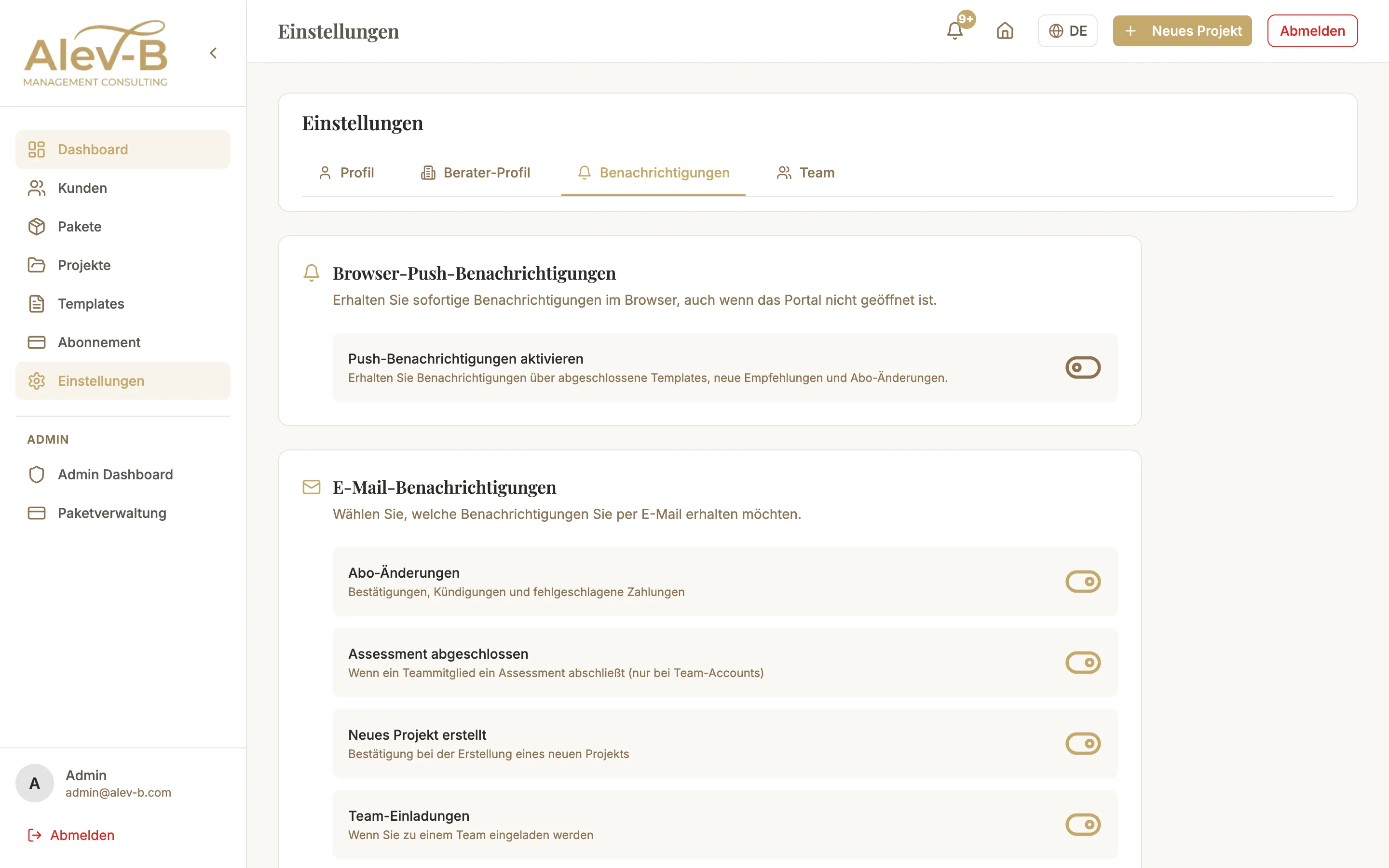
Push notifications can be individually turned on and off under Account → Settings → Notifications.
Common Issues
Push notifications are not arriving
Push notifications require a browser permission. Check: (1) Browser settings → Notifications → alev-b.com → Allowed. (2) Account → Settings → Notifications → Push enabled. (3) Some browser extensions or focus modes block push messages. Test in a clean browser window without extensions.
Role cannot be changed
Only admins can change roles. If you are an admin yourself but still cannot change roles, check whether you are the account owner — external admins may in some cases not be able to change the account owner's role. For support: support@alev-b.com.
Next Steps
- Invite Team Members — add new colleagues to the team
- Account Settings — configure profile and notifications