Invite Team Members
With the team feature you can invite colleagues to your Alev-B account and collaborate on projects together. Invited members get access to all shared projects and can edit assessments, generate AI recommendations, and create exports — depending on their assigned role.
Inviting a Member
Dashboard → Team → Invite member
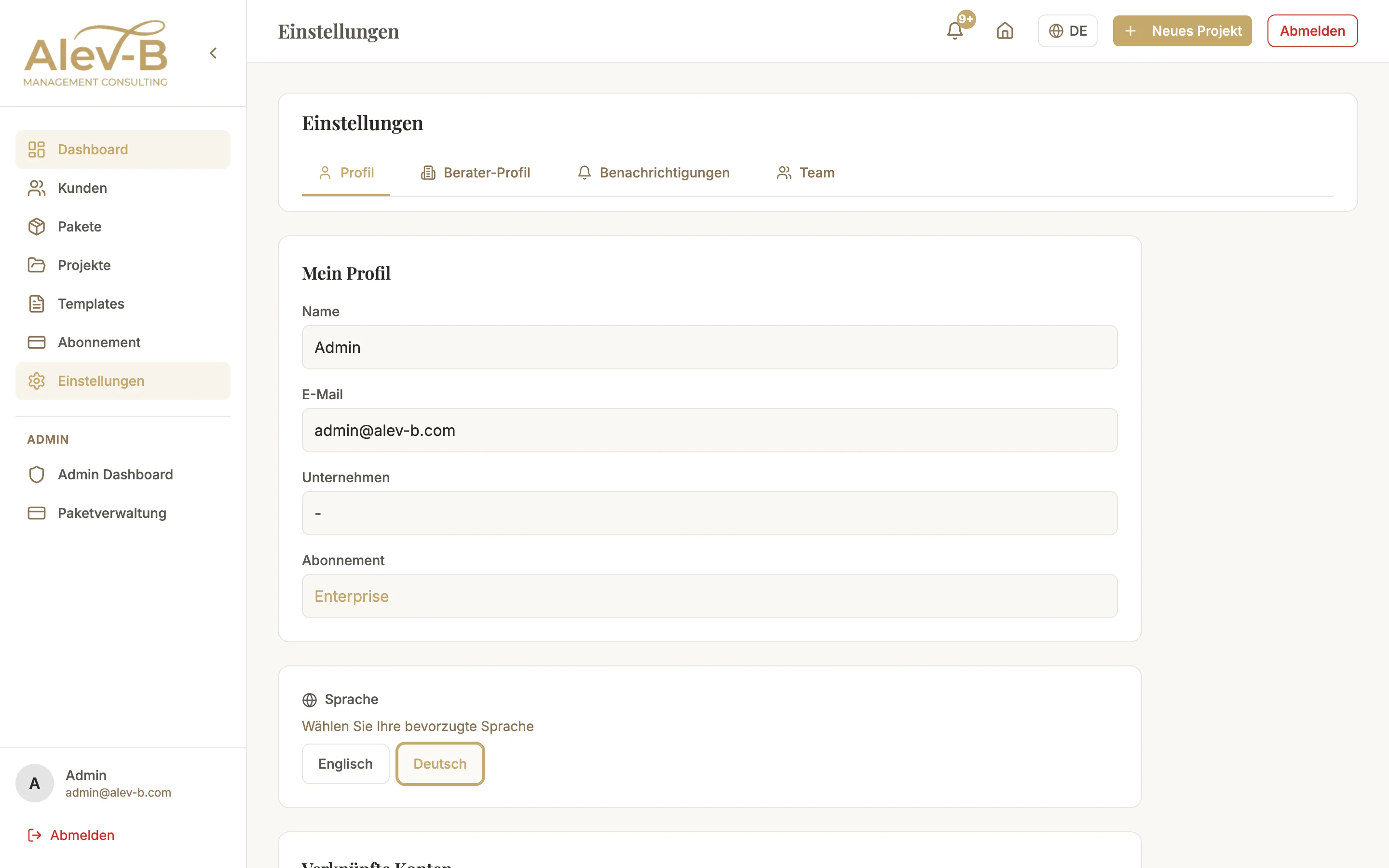
Navigate in the left sidebar to "Team". On the team page you see all current members and an "Invite member" button in the top right. Click it to open the invitation dialog.
Enter email and send invitation
Enter the email address of the colleague to be invited. Optionally select a role (Admin or Member — default is Member). Click "Send invitation". The system sends an email with a personalized registration link.
Important: the email address must exactly match the address with which the colleague will later register. A mismatch (e.g. different capitalization) will cause the invite link to be rejected.
Invitee receives email with registration link
The colleague receives an email from noreply@alev-b.com with a personalized invitation link. The link is valid for 7 days. If the email does not appear in the inbox: check the spam/junk folder.
Member registers and gains access
The colleague clicks the invitation link, is redirected to the registration page, and sets their password. After successful registration, the new member immediately has access to all shared projects of the team.
Note: new team members only see projects that belong to the team. Private standalone assessments of the inviting user are not automatically shared.
Common Issues
Invitation link has expired
Go to Team → Pending Invitations. There you see all still-pending invitations with expiry dates. Click "Resend" next to the relevant invitation to generate and send a new 7-day link.
Colleague cannot use the link — "Email does not match"
The invitation is tied to a specific email address. If the colleague uses a different address for registration (e.g. alias or different capitalization), the verification fails. Solution: withdraw the invitation and resend it with the correct email address.
"Invite member" button is missing or locked
Team features require the Enterprise plan. If the button appears locked, check your current plan under Account → Subscription. Only account admins can invite members — Member roles do not have this permission.
Next Steps
- Roles & Activity Feed — who can do what and what is currently happening in the team
- Create & Manage Projects — create projects for the team